Article too long to read?
At Short of the Month, we receive 80+ short films every month and unfortunately, more than 30% of films are submitted without a poster. As Short of the Month is an online film festival, we’ve to publish selected films on our website for the Audience Choice Awards and for public screening. Usually, to publish a film, we take 15-20 mins, but the short film without posters take up to 1-2 days as our programming team will have to sit through the film again to get a good screenshot so that we can use that as the cover picture for the film. I am sure most of the online festivals out there face similar issues.
A poster is not mandatory for most of the film festivals and most of the filmmakers never bothers to make one. I don’t blame the filmmaker, as creating a poster can be sometimes expensive and time-consuming if the filmmaker doesn’t have any designing skills or doesn’t know how to use Photoshop. While talking to a couple of filmmakers I found out that most of them never make a poster because they don’t have the necessary skills for that.
In this article, I’ll show you how to make a poster in less than 5 mins using a drag and drop web app called Canva. Canva is a free online graphic design platform. It’s an amazing tool to make creatives for Facebook, Twitter, Instagram, Blog, etc…
Please note that this is not going to be a highly creative poster and not a permanent solution. Keeping that is mind, let’s make our poster on Canva.
- Create your free Canva account and login

- After you log in, you’ll be taken to Canva’s main dashboard where you can see your previous graphics if you have designed any. Also this is where you’ll be selecting the poster size. To see the available poster sizes, click on the ‘More’ button on the top left side of the screen.

- Upon clicking the more button, a new box will slide down with many preset dimensions for various platforms. For our purpose we’ll select ‘Poster – 42cm x 59.4cm’.

- If you don’t want to create the poster using a pre-defined dimension, you can create a custom dimension using the ‘Use custom dimensions’ option and you’ll get an option to create custom dimensions and create poster the way you want.

- Once you select your poster size, you’ll be taken to a page with a blank canvas and we are ready to drag and drop our elements in to the blank canvas.

- Go to the uploads section using the tabs on the left side and upload your image to Canva and then drag and drop the image into your canvas.

- I’ll be only using 1 image, so I’ve enlarged the image to fill the canvas.

- Once you are satisfied with your image positioning it’s time to add your film name and other details. For this tutorial purpose, I’ve kept my details minimal. To add text, use the text tab on the left. You can either use the pre-designed texts or create own.


- Use the filter option to add depth to the images. To access the filter option, click in the image and select ‘filter’ from the box which appears.

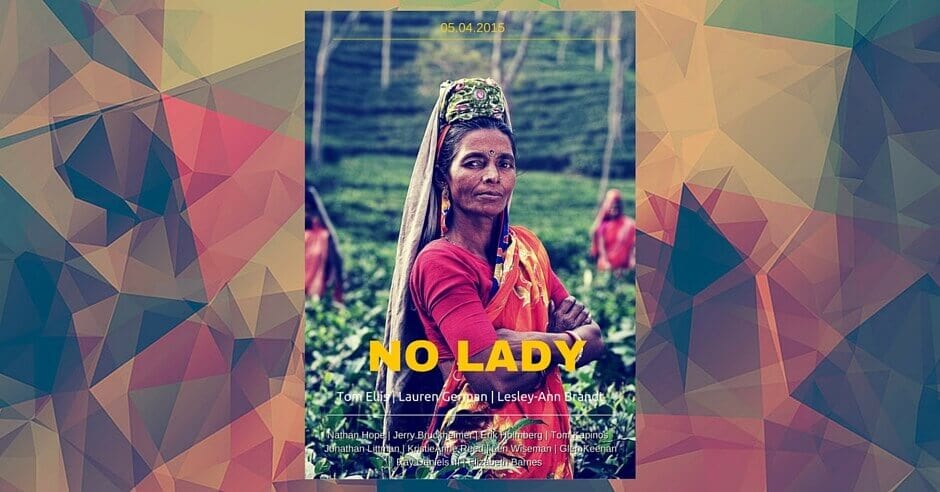
That’s it. You just created your poster without much design knowledge. Check out the final poster below.

This is not the best poster, but it’s something. It’s not bad for a poster designed in 5 minutes. Something is better than nothing.
If you created a poster with Canva or something else show us the poster via the comment box. If we find some good posters we’ll feature it on Indie Shorts Mag.
Got Something to add to this article?
Your email address will not be published. Required fields are marked *